
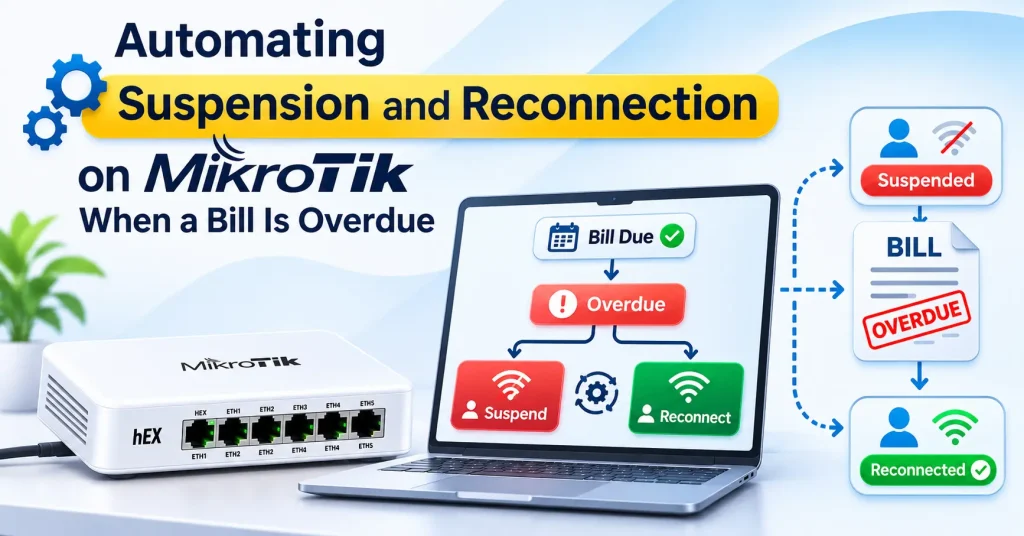
Every ISP running PPPoE on MikroTik faces the same daily job: subscribers whose bill is overdue need to be suspended, and subscribers who pay need to be reconnected, quickly. Doing this by hand in Winbox works for 50 customers. At 500 or 5,000, it leads to missed suspensions, angry customers who paid but are still offline, and staff working late at night. This guide explains the main ways to automate suspension and reconnection on MikroTik when a bill is overdue, with example RouterOS configuration, and the mistakes to avoid.
Note: the commands below are examples for RouterOS 7 with PPPoE. Test them on a lab router or a few test users first, and adjust IP addresses, names and rule order to suit your network.
Three ways to suspend overdue subscribers
| Method | How it works | Good for | Problems |
|---|---|---|---|
| Manual in Winbox | Staff disable the PPP secret and remove the active connection | Very small networks | Slow, easy to forget, no record of who did what, reconnection waits for office hours |
| Scripts on the router | A scheduler script disables secrets based on dates stored in comments | Small networks with one router | Hard to maintain, dates must be updated by hand, breaks across multiple routers |
| RADIUS with billing | The billing system tells RADIUS who is active, and RADIUS tells MikroTik at login and through disconnect requests | Most ISPs with more than a few hundred subscribers | Needs a one-time setup of RADIUS and the router |
For most growing ISPs, RADIUS connected to billing is the right answer, because the payment, the expiry date and the router all stay in sync automatically. If you are new to RADIUS, read our guide to ISP RADIUS solutions first.
How RADIUS-based suspension works
- The plan expires or the bill goes overdue in the billing system.
- Billing updates RADIUS, marking the user as expired.
- RADIUS sends a disconnect request to the MikroTik for the user’s active session. Without this step, the subscriber stays online until their router happens to reconnect.
- The subscriber’s router redials PPPoE. RADIUS now either rejects the login, or accepts it with restricted access that only allows the payment page.
- The subscriber pays online by UPI, card or net banking.
- Billing updates RADIUS to active, and RADIUS sends another disconnect request.
- The router redials and gets full speed again, usually within seconds of the payment.
Option A: Reject the login
The simplest method. When the user is expired, RADIUS sends Access-Reject and the PPPoE connection fails. The subscriber has no internet until they pay.
Downside: the subscriber cannot open your payment page from home, so they must pay using mobile data, a payment link sent by SMS or WhatsApp, or at your office. Many subscribers also call support thinking the line is faulty.
Option B: Restricted access with a payment notice (recommended)
When the user is expired, RADIUS accepts the login but adds the subscriber’s IP to a MikroTik address list, for example expired, using the Mikrotik-Address-List attribute. You can also assign an IP from a separate pool with Framed-Pool, and a low speed with Mikrotik-Rate-Limit. Firewall rules on the MikroTik then allow only DNS and your payment site, and block everything else.
Benefits: the subscriber can pay from home, support calls drop, and you can show a page that explains why the internet stopped.
Limit: most websites use HTTPS, and a router cannot redirect HTTPS pages to your notice without certificate errors. Only plain HTTP requests can be redirected. Phones and laptops often detect the restriction and show a “sign in to network” prompt, but you should still send the payment link by SMS or WhatsApp.
Step 1: Connect MikroTik to RADIUS
Add your RADIUS server and enable RADIUS for PPP:
/radius
add service=ppp address=10.10.10.5 secret=YourStrongSecret timeout=3s

/ppp aaa
set use-radius=yes accounting=yes interim-update=5m
Replace 10.10.10.5 with your RADIUS server’s IP and use a long, random shared secret.
Step 2: Allow disconnect requests from RADIUS
For suspension and reconnection to happen instantly, the MikroTik must accept disconnect and change-of-authorisation (CoA) requests from RADIUS. RouterOS listens on UDP port 3799 by default:
/radius incoming
set accept=yes port=3799
If you have firewall rules on the input chain, allow UDP 3799 only from your RADIUS server’s IP, and keep it closed to everyone else.
Step 3: Firewall rules for expired subscribers
These example rules let users in the expired address list reach DNS and your payment website only, and show a notice page for plain HTTP requests:
/ip firewall address-list
add list=allowed-when-expired address=pay.yourisp.in comment="Payment site"

/ip firewall filter
add chain=forward src-address-list=expired dst-address-list=allowed-when-expired action=accept comment="Expired: allow payment site"
add chain=forward src-address-list=expired protocol=udp dst-port=53 action=accept comment="Expired: allow DNS"
add chain=forward src-address-list=expired protocol=tcp dst-port=53 action=accept comment="Expired: allow DNS over TCP"
add chain=forward src-address-list=expired protocol=tcp dst-port=80 action=accept comment="Expired: allow redirected HTTP"
add chain=forward src-address-list=expired action=reject reject-with=icmp-admin-prohibited comment="Expired: block everything else"

/ip firewall nat
add chain=dstnat src-address-list=expired protocol=tcp dst-port=80 action=dst-nat to-addresses=10.10.10.20 to-ports=80 comment="Expired: show payment notice"pay.yourisp.inis your payment site. RouterOS resolves domain names in address lists automatically. If your payment gateway uses other domains, add them too.10.10.10.20is a small web server showing your “Please renew” notice with a payment button.- Rule order matters. These rules must sit above any general “accept” rules in the forward chain, or expired users will get full access. In Winbox, drag them to the top, or use
place-beforewhen adding them.
Step 4: RADIUS replies for active and expired users
Your RADIUS server or billing system sends different attributes depending on the subscriber’s status. A typical setup looks like this:
| Status | RADIUS reply |
|---|---|
| Active | Access-Accept with Mikrotik-Rate-Limit set to the plan speed, for example 100M/100M |
| Expired (Option A) | Access-Reject |
| Expired (Option B) | Access-Accept with Mikrotik-Address-List = expired, optionally Framed-Pool for a separate IP pool and a low Mikrotik-Rate-Limit |
When the status changes, the billing system must also trigger a disconnect request, so the active session is closed and the router reconnects with the new reply. Changing RADIUS alone is not enough for users who are already online.
Step 5: Set clear suspension rules
Automation is only as good as the rules behind it. Decide these in advance:
- When to suspend: on the expiry date for prepaid plans, or a fixed number of days after the due date for postpaid bills. Our comparison of prepaid vs postpaid broadband billing explains the difference.
- Grace period: some ISPs allow one or two days, especially for long-time subscribers.
- What time to suspend: many ISPs suspend in the morning, when the office and support team are available, rather than at midnight.
- Reminders first: send reminders a few days before, one day before and on the due date, with a payment link. See ISP collections with UPI and WhatsApp reminders.
- Exceptions: who can approve a temporary extension, and is it recorded in the system.
Common mistakes to avoid
- Not disconnecting active sessions. The user is marked expired but stays online for days, because PPPoE sessions can last until the router restarts.
- Payment received but no reconnection. If reconnection waits for a staff member, the customer who just paid calls support angrily. Reconnection should happen automatically on payment.
- Disconnect requests blocked. A firewall rule or wrong shared secret blocks port 3799, so changes only apply on the next reconnect.
- Wrong firewall rule order, giving expired users full internet.
- Wrong router clock. Set NTP on the MikroTik and RADIUS server, so session and accounting times are correct.
- Deleting PPP users to suspend them. This loses the subscriber’s settings and history. Use RADIUS status instead.
- Static IP or business customers suspended without a call. For high-value accounts, call before suspending.
How to test before going live
- Create a test subscriber with a plan that expires in a few minutes.
- Connect a test router and confirm it gets the plan speed.
- Let the plan expire and check that the session is disconnected and the router reconnects into the
expiredaddress list. - Try opening a few websites and your payment page from the test device.
- Make a test payment and confirm the session is disconnected again and full speed returns.
- Check the logs in billing, RADIUS and MikroTik for each step.
How ISPMate automates suspension and reconnection
ISPMate is cloud-based ISP billing software for internet service providers in India. With ISPMate, PPPoE users are created, speed-limited, suspended on expiry and reconnected on payment through RADIUS and MikroTik, without staff working in Winbox:
- Plans with speed, validity, price and GST, applied through RADIUS
- Automatic suspension on expiry, and automatic reconnection as soon as payment is received
- Online payments by UPI, card or net banking, recorded against the subscriber’s invoice
- Renewal reminders by SMS, and WhatsApp through ISPMate’s QuickMessage platform
- A customer app and portal where subscribers check dues and renew
- Integration with bandwidth managers such as Jaze, IPACCT, Height8, DMA, XceedNet and 24online
For more on cutting overdue bills, see how ISPs collect broadband dues.
Frequently asked questions
How do I automatically suspend overdue users on MikroTik?
The most reliable way is to connect MikroTik to a RADIUS server linked to your billing system. When a bill is overdue, billing marks the user as expired in RADIUS and sends a disconnect request, so the user is either rejected or limited to the payment page when the PPPoE connection reconnects.
How does reconnection happen after payment?
When the payment is recorded, the billing system marks the user as active in RADIUS and sends a disconnect request to the MikroTik. The subscriber’s router redials PPPoE, receives the normal plan speed and is back online, usually within seconds.
Why is an expired user still online on MikroTik?
RADIUS settings apply when a PPPoE session starts. If the active session is not disconnected, the user stays online until the router reconnects. Make sure disconnect requests are enabled on the MikroTik, UDP port 3799 is allowed from the RADIUS server, and the shared secret matches.
Can I show a payment page to suspended subscribers?
Yes. RADIUS can place expired users in a MikroTik address list, and firewall rules can allow only DNS and your payment site. Plain HTTP requests can be redirected to a notice page, but HTTPS sites cannot be redirected cleanly, so also send the payment link by SMS or WhatsApp.
Should an ISP suspend at midnight or in the morning?
Many ISPs suspend in the morning, when the office and support team are available to answer calls and process payments. Whatever time you choose, send reminders before the due date and make sure reconnection on payment is automatic at any hour.
Still suspending users by hand in Winbox? Book a free ISPMate demo or call +91-9310313545.
Sources: MikroTik RouterOS documentation (RADIUS, PPP AAA, firewall and address lists), RFC 5176 (Dynamic Authorization Extensions to RADIUS). Commands are examples for RouterOS 7; check them against your version. Last reviewed: November 2026.