
“My internet is slow” is the complaint every ISP support team hears most. It is also the hardest to handle well, because the cause can be anywhere: the customer’s phone, their Wi-Fi, the router, the fibre, the PON port, or your upstream link. Teams that guess send engineers to homes where nothing is wrong, and miss real network problems. Teams that follow a simple order of checks fix most slow speed complaints on the first call. This guide gives your support team that order, from the first question to closing the ticket.
Where slow internet usually comes from
| Where | Common causes | Who can fix it |
|---|---|---|
| Customer’s device | Old phone or laptop, background downloads, too many devices at once | Customer, with guidance |
| Wi-Fi | Weak signal in far rooms, crowded 2.4 GHz band, walls, too many users | Support on call, or a router change |
| Router or ONT | Old router, 100 Mbps LAN ports, overheating, wrong settings, firmware issues | Support remotely, or engineer |
| Plan and account | Plan speed lower than the customer thinks, data limit (FUP) reached, wrong speed profile | Support from the billing system |
| Last mile | Low optical power, dirty or damaged connector, sharp fibre bend, loose drop cable | Engineer |
| Your network | Busy PON port or switch uplink, congestion at peak hours, upstream link issue | Network team |
In most ISPs, a large share of “slow internet” calls are about Wi-Fi and devices, not the line. That is why the order of checks matters.
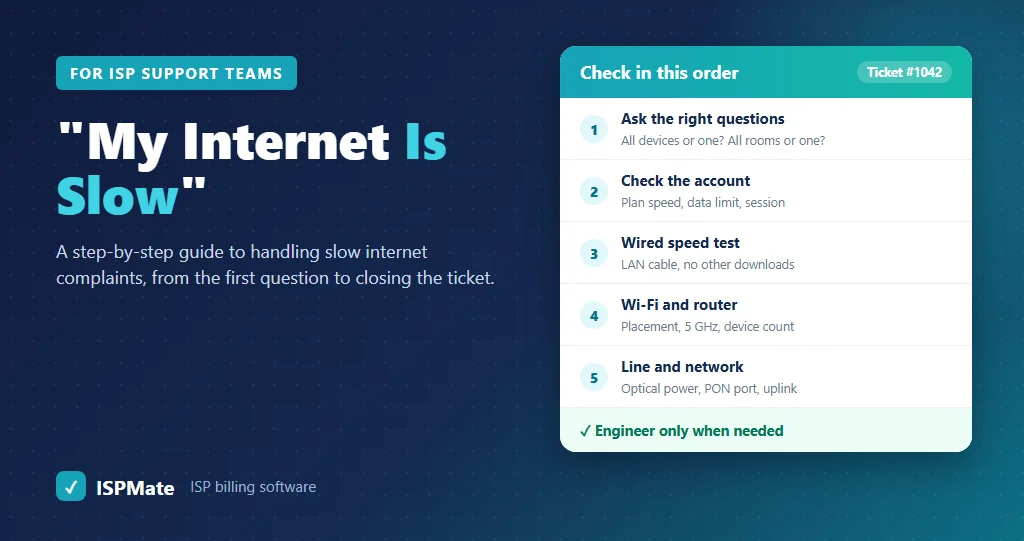
Step 1: Ask the right questions
Before touching anything, the support agent should ask:
- Is it slow on all devices, or one? One device points to the device.
- Is it slow everywhere in the house, or in one room? One room points to Wi-Fi coverage.
- Is it slow all day, or at certain times? Evenings only can point to congestion.
- Is it slow for everything, or one app or website? One app may be that app’s problem.
- When did it start? After a storm, construction work or a router change can be a clue.
- How was the speed measured? On Wi-Fi, on a phone, or on a laptop with a cable?
Record the answers in the ticket. They save time if the complaint is escalated.
Step 2: Check the account in your system
Many complaints can be solved without testing the line:
- Plan speed: is the customer on the plan they think they are on?
- Data limit: has the customer used up their high-speed data, so the speed is reduced as per the plan?
- Speed profile: is the right speed applied in RADIUS, especially after a recent upgrade?
- Session: is the connection online, and is it disconnecting and reconnecting often?
- Usage graph: is the customer actually getting close to plan speed, or is usage low at the times they complain?
- Area: are other customers on the same PON port or area complaining too?
If several customers in one area complain at the same time, treat it as a network issue, not a home issue. See our guide on fibre cuts and outages.
Step 3: Do a proper speed test
A speed test on a phone over Wi-Fi in another room tells you about the Wi-Fi, not the line. Ask the customer to:
- connect a laptop or computer to the router with a LAN cable, if possible;
- stop other downloads, streaming and updates during the test;
- use a well-known speed test site, and test more than once;
- note the result with the time.
Keep in mind:
- A router or computer with 100 Mbps LAN ports cannot show more than about 94 Mbps, even on a 200 Mbps plan.
- Wi-Fi speeds are usually lower than wired speeds, especially on older phones and on 2.4 GHz.
- Speed test results vary by server and time; one low result is not proof of a fault.
Step 4: Check Wi-Fi and the router
- Restart the router and ONT once, if not already done.
- Check where the router is placed. Inside a cupboard, behind a TV or in a corner room gives weak signal elsewhere.
- Use 5 GHz for nearby rooms, and 2.4 GHz for distance.
- Count connected devices. Many phones, TVs and cameras share the same speed.
- Check the router itself. Very old routers cannot handle higher plans. For large homes, suggest a better router or a mesh system.
- Change the Wi-Fi channel in crowded buildings.
If your routers and ONTs support TR-069, many of these checks and changes can be done from the office. Read TR-069 for ISPs.
Step 5: Check the line
If the wired speed test is still low, check the last mile:
- Optical power on the ONT, from the OLT or the device. Compare it with the range your equipment vendor specifies; levels near the limit cause slow speed and drops.
- Errors and drops on the port.
- Recent changes: new construction, moved furniture, or a cable pulled near the ONT.
Only now should an engineer be sent, with the details already in the ticket: test results, optical power, and what has been tried.
Step 6: Check your own network
If many customers report slow speed, especially at peak hours:
- check utilisation on the PON port, OLT uplink and core switches;
- check your upstream bandwidth at peak time;
- check the access server or NAS for high load.
Plan capacity before it runs out. Our guides on subscribers per PON port and bandwidth monitoring tools explain what to watch.
When to send an engineer
| Send an engineer when | Solve remotely when |
|---|---|
| Wired speed test is low and the account is correct | The data limit has been reached or the plan speed is lower than expected |
| Optical power is out of range or the port shows errors | Only one device or one room is slow |
| The connection keeps dropping | Router settings or Wi-Fi channel need a change |
| The router or ONT is faulty and must be replaced | The problem is a known area outage already being fixed |
Scripts your support team can use
Opening: “I’m sorry the internet is slow. I’ll check your connection now. Is it slow on all your devices, or only one?”
Data limit reached: “Your plan includes high-speed data up to the limit, and that has been used this cycle, so the speed is reduced until renewal. I can share options to add data or move to a higher plan.”
Wi-Fi issue: “Your line is giving full speed when tested with a cable. The slow speed is from the Wi-Fi in that room. Here are two things that will help…”
Engineer visit: “I’ve checked your account and connection. An engineer will visit [time]. Your complaint number is [docket number].”
Close the ticket the right way
- Give a complaint (docket) number when the ticket is opened, and send updates by SMS or WhatsApp.
- Close the ticket only after the customer confirms the speed is fine, and record the cause.
- Call back customers whose complaints were reopened.
- Review causes every month: if most are Wi-Fi, train customers; if most are one area, check the network there.
If your ISP has more than 10,000 subscribers, TRAI’s complaint rules also set time limits, appeals and feedback surveys. Read our guide to G3RS and TRAI’s complaint rules.
Prevent slow speed complaints
- Install routers in a central place, and explain Wi-Fi basics at installation.
- Do not sell high-speed plans on routers that cannot deliver them.
- Monitor PON ports and uplinks, and upgrade before peak-hour congestion.
- Explain the data limit and reduced speed clearly at the time of sale.
- Send maintenance and outage alerts before customers call.
How ISPMate helps your support team
ISPMate is cloud-based ISP billing software for internet service providers in India, with ticketing and complaint management linked to each subscriber’s plan and connection:
- Tickets with your own complaint categories, assigned to technicians, with escalation rules and response templates
- Real-time and history usage graph for each subscriber, with auth and concurrent session logs
- Plan, speed and expiry visible on the subscriber’s record, with RADIUS speed profiles applied from billing
- TR-069 device management for supported routers and ONTs
- Incident alerts for fibre cuts or link down, and automatic SMS updates on complaints
- Field engineers see their tasks on the mobile app
Read more in our guide to ISP complaint management software.
Frequently asked questions
What is the first thing to check when a customer says the internet is slow?
Ask whether it is slow on all devices or one, and in all rooms or one, then check the customer’s plan, data limit and session in your system. Many slow speed complaints come from Wi-Fi, devices or a used-up data limit rather than the line.
How should a customer test broadband speed correctly?
Connect a laptop or computer to the router with a LAN cable, stop other downloads and streaming, and run a speed test more than once. Wi-Fi tests on a phone mostly show Wi-Fi performance, not the line speed.
Why does a 200 Mbps plan show only about 94 Mbps?
Often because the router or computer has 100 Mbps LAN ports, which cannot carry more than about 94 Mbps of real data. A router and device with gigabit ports are needed to see higher speeds.
When should an ISP send an engineer for a slow speed complaint?
When a wired speed test is low even though the plan and account are correct, when optical power is out of range or the port shows errors, when the connection keeps dropping, or when the router or ONT needs replacement.
How can an ISP reduce slow internet complaints?
Place routers well at installation, match router quality to plan speed, explain data limits at the time of sale, monitor PON ports and uplinks before peak-hour congestion, and send outage alerts before customers call.
Want every slow speed complaint tracked to a fix? Book a free ISPMate demo or call +91-9310313545.
Last reviewed: November 2026.